
A JavaScript-powered page can look complete in your browser and still fail to expose important content to search engines. The problem may be a blocked script, a failed API request, a client-side routing issue, a canonical that changes after rendering, or a page that returns the wrong HTTP status. The fastest way to debug it is to inspect what Google can fetch and render—not just what a human sees.
This guide is a troubleshooting workflow for developers and SEO teams investigating JavaScript rendering issues in Google Search. It complements LogixScale’s JavaScript SEO guide, which explains the broader crawl-render-index process, and the React and Next.js SEO implementation guide, which covers framework-level decisions.
Core principle: Test the exact affected URL, compare the original response with Google’s rendered HTML, inspect errors and blocked resources, fix the underlying cause, then test the same URL again. Do not assume a page is indexed—or not indexed—based on its appearance in a normal browser alone.
What counts as a JavaScript rendering issue?
A rendering issue occurs when the content, links, or signals that should be available on a JavaScript-driven page do not appear reliably in the output search systems can process. Examples include:
- The initial HTML contains only an application shell, while a failed script prevents the main content from appearing.
- A product or article depends on an API response that fails, times out, or returns incomplete data.
- Important JavaScript or CSS resources are blocked from crawling.
- Navigation changes the displayed view but does not expose crawlable URLs.
- The page shows a not-found message but still returns HTTP 200.
- Canonical or robots metadata differs between the initial HTML and rendered result.
- Structured data is inserted incorrectly or does not match the visible page.
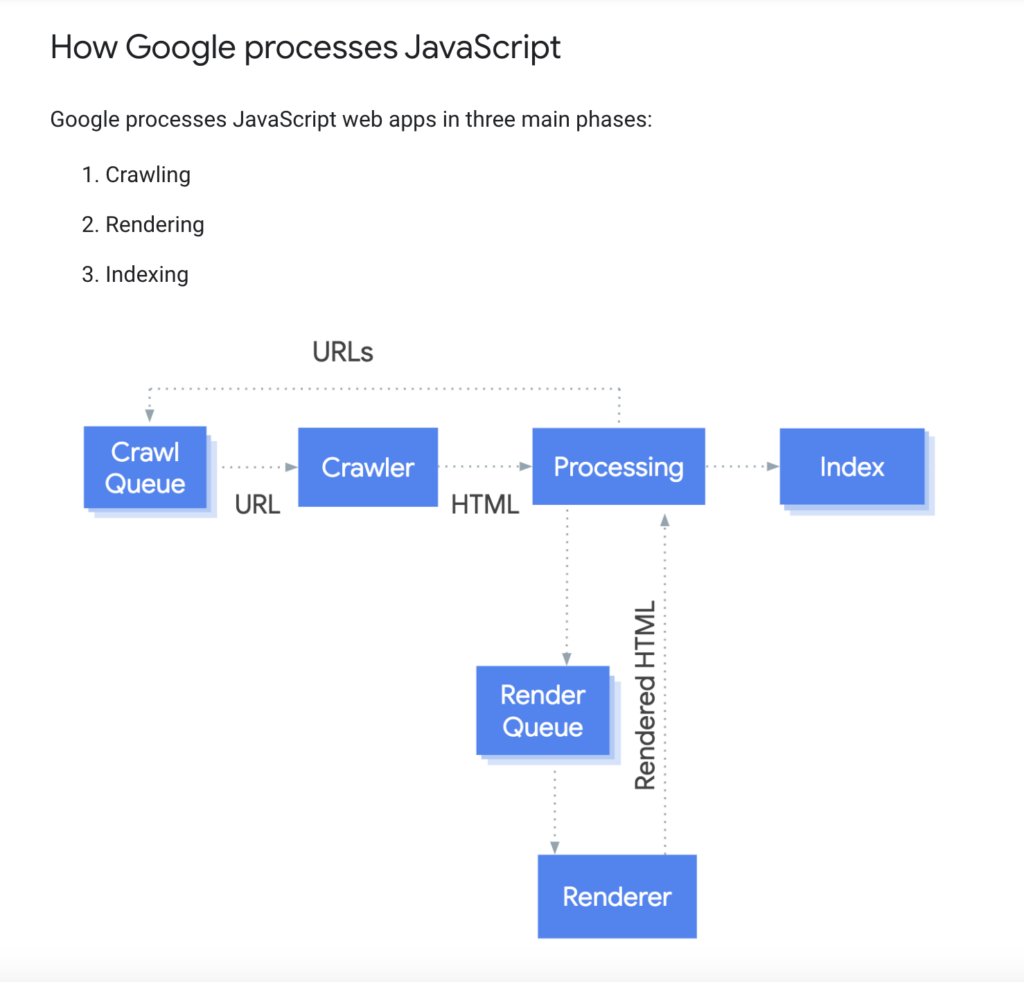
Google Search processes JavaScript pages through crawling, rendering, and indexing stages. Rendering can reveal content produced by JavaScript, but that is not a guarantee that every resource or application state will work as intended. See Google’s JavaScript SEO basics for the current process.
Step 1: Confirm the affected URL and the symptom
Start with one specific URL that has a reproducible problem. Record the exact URL, the expected content, the observed symptom, and when the problem first appeared. If the issue started after a deployment, framework update, route change, API migration, or caching change, keep that context with the test.
Useful symptoms include a URL reported as crawled but not indexed, missing content in a rendered test, an unexpected canonical, a soft 404, or a search result that displays the wrong title. These symptoms can have different causes, so do not treat them as interchangeable.
Step 2: Use URL Inspection in Google Search Console
For a property you control, open Google Search Console and use URL Inspection on the exact canonical or affected URL. Review the indexing information and, when available, run a live test. The tool can help you inspect the fetched response and the rendered result, including page resources and rendering errors.
- Compare indexed data with a live test. An older indexed result and the current live page may differ.
- Inspect rendered HTML. Check whether the main heading, substantive text, links, metadata, and structured data are present.
- Review page resources and errors. Look for scripts, stylesheets, or requests that failed or were blocked.
- Keep the evidence. Save the test result or screenshots before changing code so you can compare after the fix.
For available diagnostic details and a recommended sequence, use Google’s guide to fixing Search-related JavaScript problems. A live test helps diagnose access and rendering; it does not guarantee that a URL will be indexed.
Step 3: Compare the initial HTML with the rendered result
Inspect the raw HTTP response or page source, then compare it with the rendered HTML shown by Search Console’s testing tools. Ask what was present initially and what appeared—or failed to appear—after JavaScript ran.
| Observation | What to investigate |
|---|---|
| Initial HTML and rendered HTML both contain the core content | Check indexability, canonical signals, quality, duplication, and other indexing reasons. |
| Initial HTML is mostly an app shell; rendered HTML contains the content | Rendering may work, but consider server-side or static rendering for reliability and other crawlers. |
| Initial HTML is an app shell and rendered HTML still lacks the content | Inspect script errors, API requests, blocked resources, and client-only dependencies. |
| Rendered content differs from what users see | Check environment-dependent behavior, cookies, authentication, feature detection, and data freshness. |
| Content appears but the URL is marked as an error | Inspect HTTP status codes, redirects, canonical URLs, and robots directives. |
Do not automatically conclude that client-side rendering is the problem. First establish where the output diverges from the intended page.
Step 4: Check robots.txt and resource access
Google cannot render a page correctly if it cannot fetch resources required to produce the content. Review robots.txt and access controls for the page and the JavaScript, CSS, and API resources it needs.
- Confirm the page URL is crawlable if it should appear in Search.
- Check whether critical JavaScript or CSS files are blocked.
- Check whether API endpoints require an authenticated session or a browser state Googlebot cannot have.
- Verify that the server does not challenge crawlers with unexpected access-denied pages or interstitials.
Do not broadly allow or disallow entire directories as a guess. Identify the exact resource that fails, understand its purpose, and make the smallest appropriate change. Also remember that robots.txt is a crawling control, not a reliable way to remove a URL from the index. LogixScale’s robots.txt vs. noindex guide explains that distinction.
Step 5: Inspect JavaScript errors and network requests
Reproduce the page in a clean browser session and open the developer tools. Inspect Console and Network for exceptions, failed requests, blocked resources, unexpected redirects, and API responses that differ from the page’s expected data.
Pay particular attention to:
- uncaught exceptions that stop the app from rendering;
- JavaScript bundles that return 404, 403, or 5xx responses;
- API requests that depend on a cookie, local storage, or user interaction;
- cross-origin or content-security restrictions;
- hydration errors that replace or remove server-rendered content;
- stale cached bundles that no longer match the deployed HTML.
Use these checks to form a specific hypothesis. A console warning is not automatically an SEO blocker; confirm that it affects content, navigation, metadata, or the actual rendered page.
Step 6: Verify links and client-side routing
Important destinations should be represented by real URLs and crawlable links. Google generally extracts URLs from anchor elements with an href attribute. A click handler on a generic element is not a reliable substitute for a standard link.
<a href="/services/technical-seo/">Technical SEO</a>For single-page applications, use your framework’s router and the History API to represent distinct, indexable content with stable URLs. Avoid relying on hash fragments as the only way to identify separate pages. Then verify that each destination loads directly when pasted into a new browser tab, not only after navigating from the homepage.
See Google’s link best practices for supported link patterns.
Step 7: Check status codes, canonical, and robots metadata
Rendering does not replace correct HTTP and metadata signals. Fetch the affected URL directly and check the response code and redirect path. A public page that exists should normally return a successful response, while a genuinely missing resource should return an appropriate not-found response—not an application shell with HTTP 200.
Then compare the metadata in the initial HTML and rendered result:
- Is the document title appropriate for the URL?
- Does the canonical point to the intended preferred URL?
- Is an unexpected
noindexdirective present in HTML or an HTTP header? - Do the sitemap and internal links point to the intended canonical URL?
- Does structured data accurately represent the rendered page?
Google recommends keeping canonical signals consistent between original HTML and rendered output where possible. For broader regression checks, see LogixScale’s SEO QA automation checklist.
Step 8: Choose the smallest reliable fix
Fix the cause identified by the evidence rather than adding a rendering workaround by default.
| Root cause | Possible fix to evaluate |
|---|---|
| Critical script fails to load | Fix the deployment path, response, caching, or dependency that prevents the bundle from loading. |
| Core content depends on a fragile client API request | Improve error handling or deliver the essential content through server-side or static rendering where appropriate. |
| Required resources are blocked | Adjust the specific crawl or access rule after confirming the resource must be fetched. |
| Important links are generated as click-only controls | Render standard anchor elements with meaningful href values. |
| Missing route returns HTTP 200 | Correct routing and server response behavior so a missing URL returns an appropriate status. |
| Metadata changes after rendering | Make canonical, robots, and other search-critical metadata consistent; use the framework’s supported metadata system. |
| Old JavaScript bundles are cached | Review cache invalidation and versioned asset filenames so deployed HTML and scripts match. |
Server-side rendering or static rendering can improve reliability for public content, but no single rendering architecture is mandatory for every route. Select the approach that fits the page’s data, freshness, performance, and operational requirements. Google describes dynamic rendering as a workaround rather than a recommended long-term solution; see Google’s dynamic rendering guidance.
Step 9: Re-test after the change
After deploying a fix, repeat the same test on the same URL. Check the rendered HTML, resource loading, core content, links, status, canonical and robots signals. Also test a small set of representative URLs from the same template to confirm that the correction did not break sibling routes.
If the live render now looks correct but the indexed version has not changed, allow time for Google to recrawl and process the page. Use Search Console to monitor the URL; do not promise immediate indexing or infer it from the successful live test alone.
JavaScript rendering troubleshooting checklist
- Record the exact URL and expected page behavior.
- Run URL Inspection and, when available, a live test in Search Console.
- Compare the initial HTML with the rendered HTML.
- Confirm critical scripts, stylesheets, and API resources can be fetched.
- Inspect browser console errors and failed network requests.
- Verify important content does not require a user interaction or persistent browser state.
- Verify important navigation uses crawlable anchor links and stable URLs.
- Check the actual HTTP status, redirect path, canonical, robots, and structured data.
- Apply a targeted fix supported by evidence.
- Re-test the same URL and representative routes after deployment.
- Monitor crawling and indexing separately; do not treat a live-test pass as a guarantee of indexing.
Conclusion
Effective JavaScript SEO debugging is a process of comparison: what the server returns, what the browser renders, what Google’s inspection tools can see, and what the URL is signaling through status codes and metadata. When those outputs disagree, follow the evidence to the specific blocked resource, failed request, routing defect, or metadata inconsistency.
For the broader foundations, continue with LogixScale’s JavaScript SEO guide, React and Next.js SEO guide, and SEO QA automation checklist.
Official references
- Google Search Central: Fix Search-related JavaScript problems
- Google Search Central: JavaScript SEO basics
- Google Search Central: Link best practices
- Google Search Central: Dynamic rendering as a workaround
Featured illustration: “Google’s JavaScript Processing Pipeline,” via Semrush. Verify license and attribution requirements before reuse beyond this editorial context.